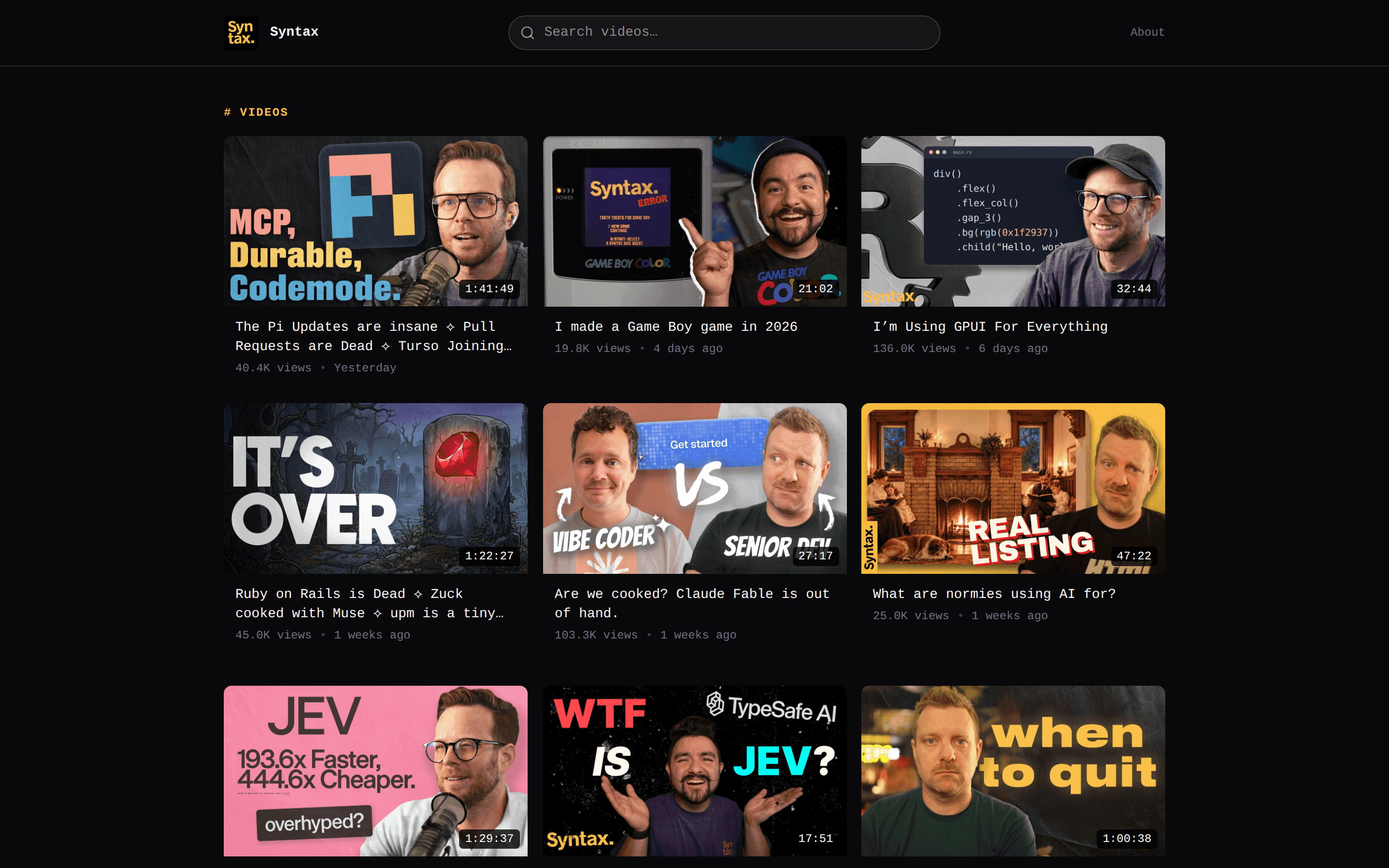
Logo, colors & bio
Make your website unmistakably yours with a custom logo, theme color, and bio.
Your theme sets the layout — your logo, theme color, and bio make the site yours. All three live in the website editor sidebar: the logo and color under Design, the bio under General.
Theme color
The Theme Color picker in the sidebar's Design section sets your site's accent color. It's applied throughout the theme — a quick way to match your website to your channel art or brand palette.
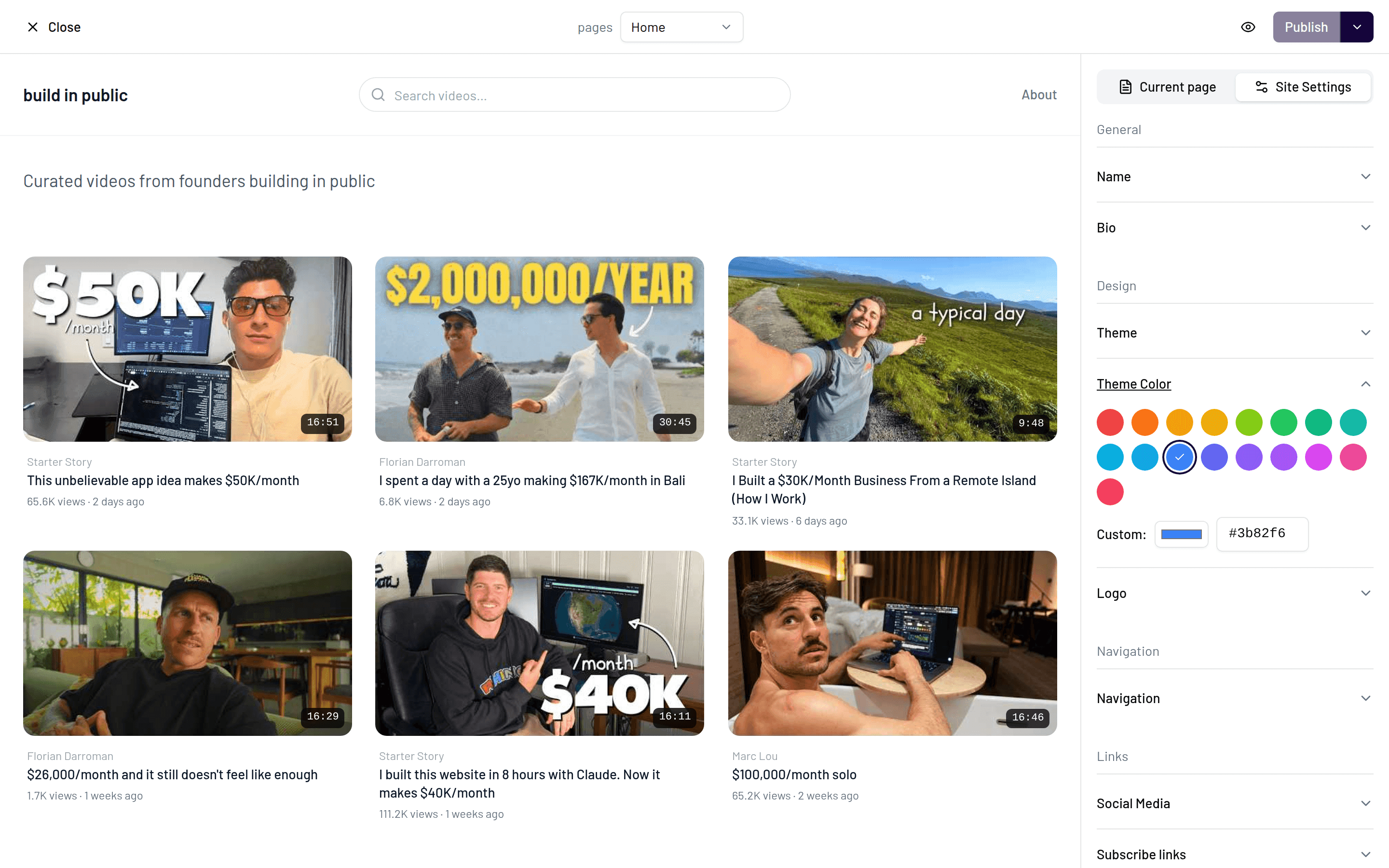
Pick a color that appears in your channel banner or logo so the site feels like a natural extension of your channel.
Logo
Upload a logo in the same Design section. It appears in your site's header on every page.
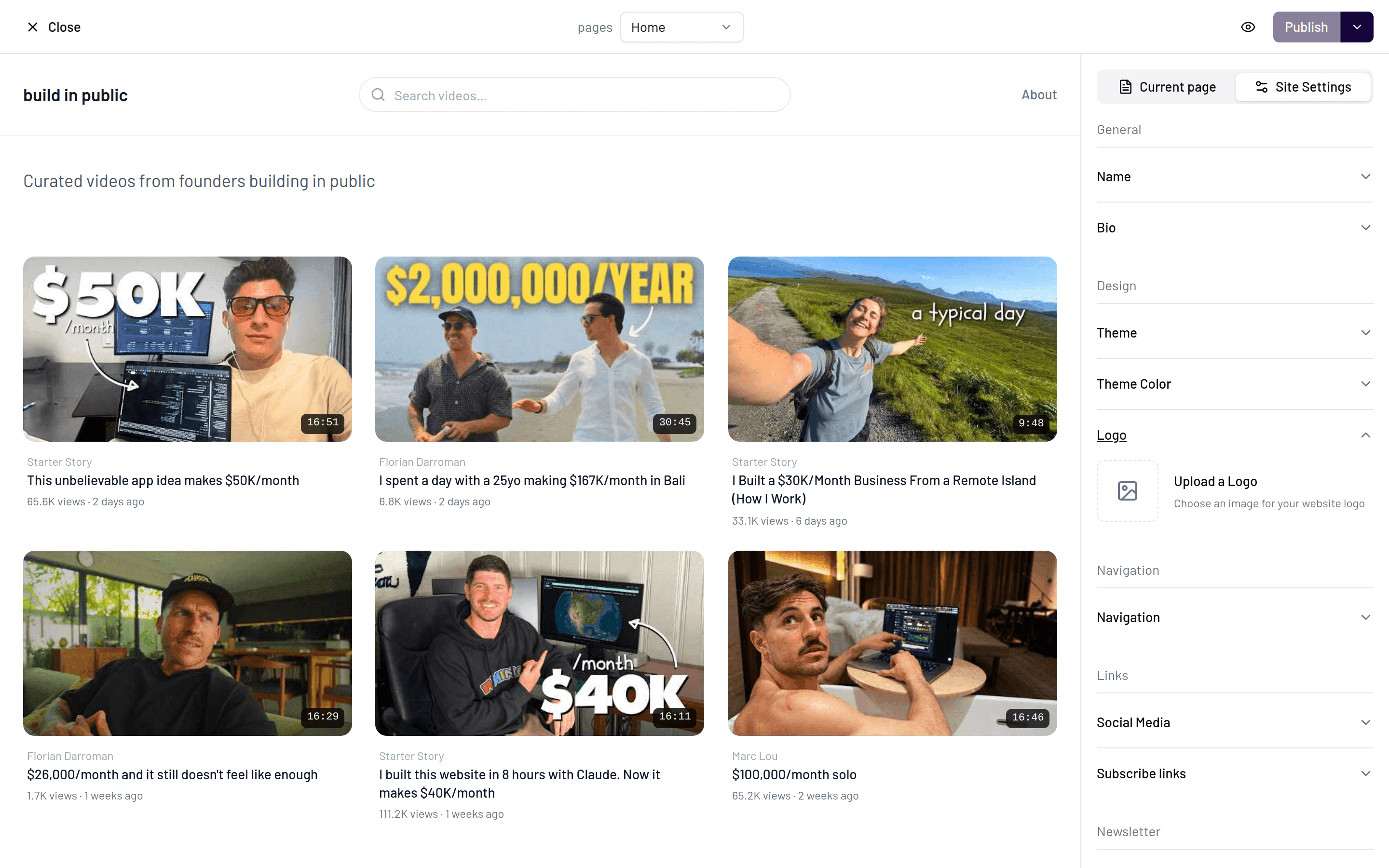
Tips for a logo that looks good everywhere:
- Use a transparent background (PNG) so it sits cleanly on both light and dark themes.
- Keep it legible at small sizes — headers don't give you much height, so avoid fine detail and thin text.
- A wordmark or simple icon works best. If your channel avatar is very detailed, consider a simplified version.
Bio
Your bio is set under General → Bio in the editor sidebar, next to your site's Name. It appears in your site's header/hero area, right where visitors land.
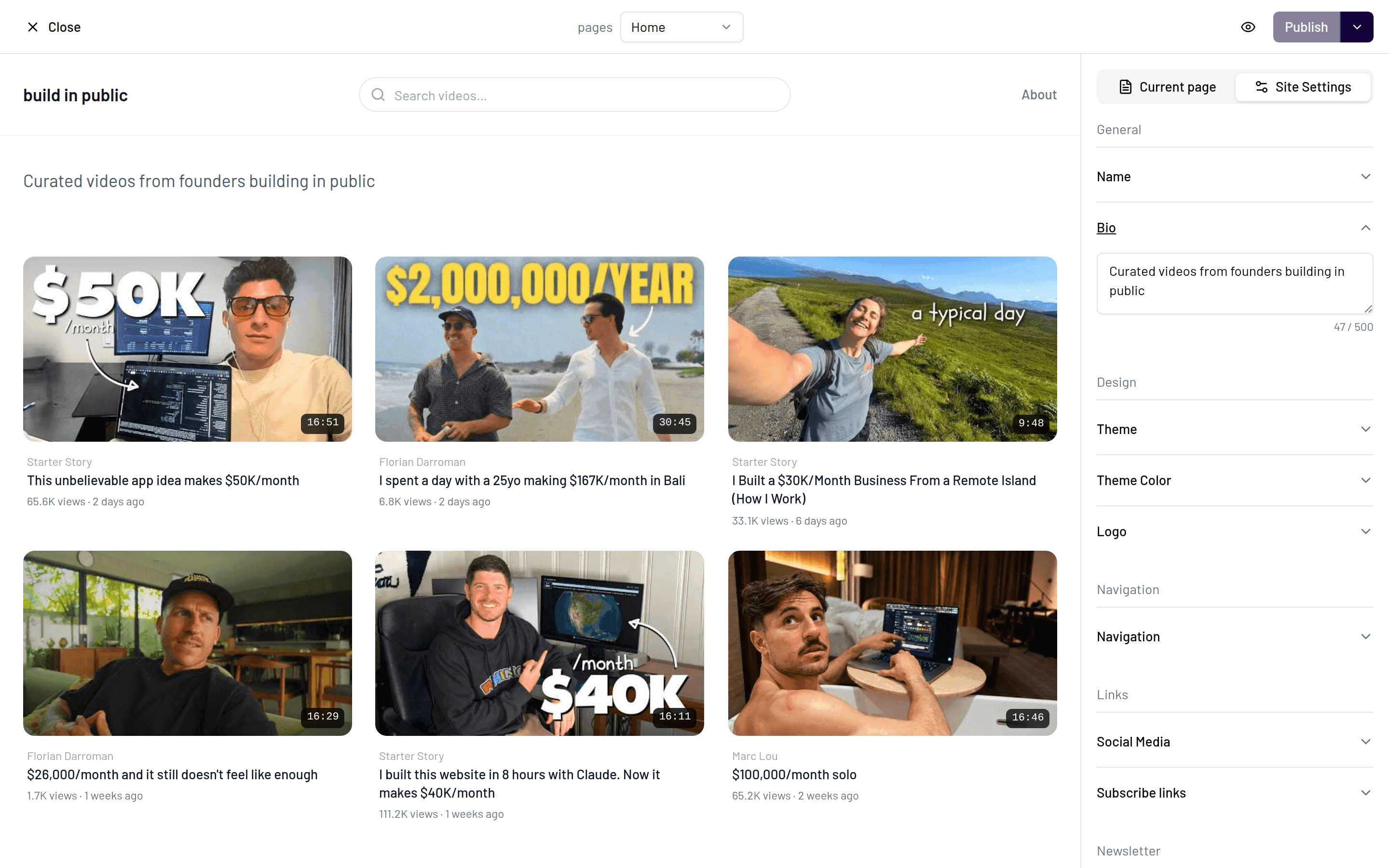
A good bio:
- Says what you make and for whom in one or two sentences — "Weekly woodworking projects for small workshops" beats "Welcome to my channel!"
- Front-loads the important part. Visitors skim; the first few words carry the message.
- Matches your voice. It's the first text people read on your site, so it should sound like your videos.
See it live
Use the Preview website button to check how your logo, color, and bio look together in your chosen theme before you publish.