
Sponsor & CTA blocks
Promote sponsors, merch, memberships, and affiliate offers with promo blocks on your homepage and video pages.
What promo blocks are for
Promo blocks turn your website into a place that earns money, not just one that lists videos. Typical uses:
- Sponsor deals — show a sponsor's banner on exactly the videos covered by the deal.
- Evergreen CTAs — link to your merch store, Patreon, course, or Discord from every page.
- Affiliate offers — promote the gear you use, with a proper disclosure label.
You'll find them in the editor sidebar under Monetization → Sponsor & CTA blocks.
Site blocks vs. Video blocks
There are two kinds of promo blocks:
- Site blocks are evergreen. They appear on your homepage in a placement you choose — hero, in-grid (inside the video grid), or footer — and optionally on all video pages. Use them for merch, Patreon, and anything that should always be visible.
- Video blocks are sponsor blocks that appear only on the videos you explicitly assign them to. Use them for per-video sponsor deals.
Create a block
Open your website in the editor and select Sponsor & CTA blocks in the sidebar under Monetization.
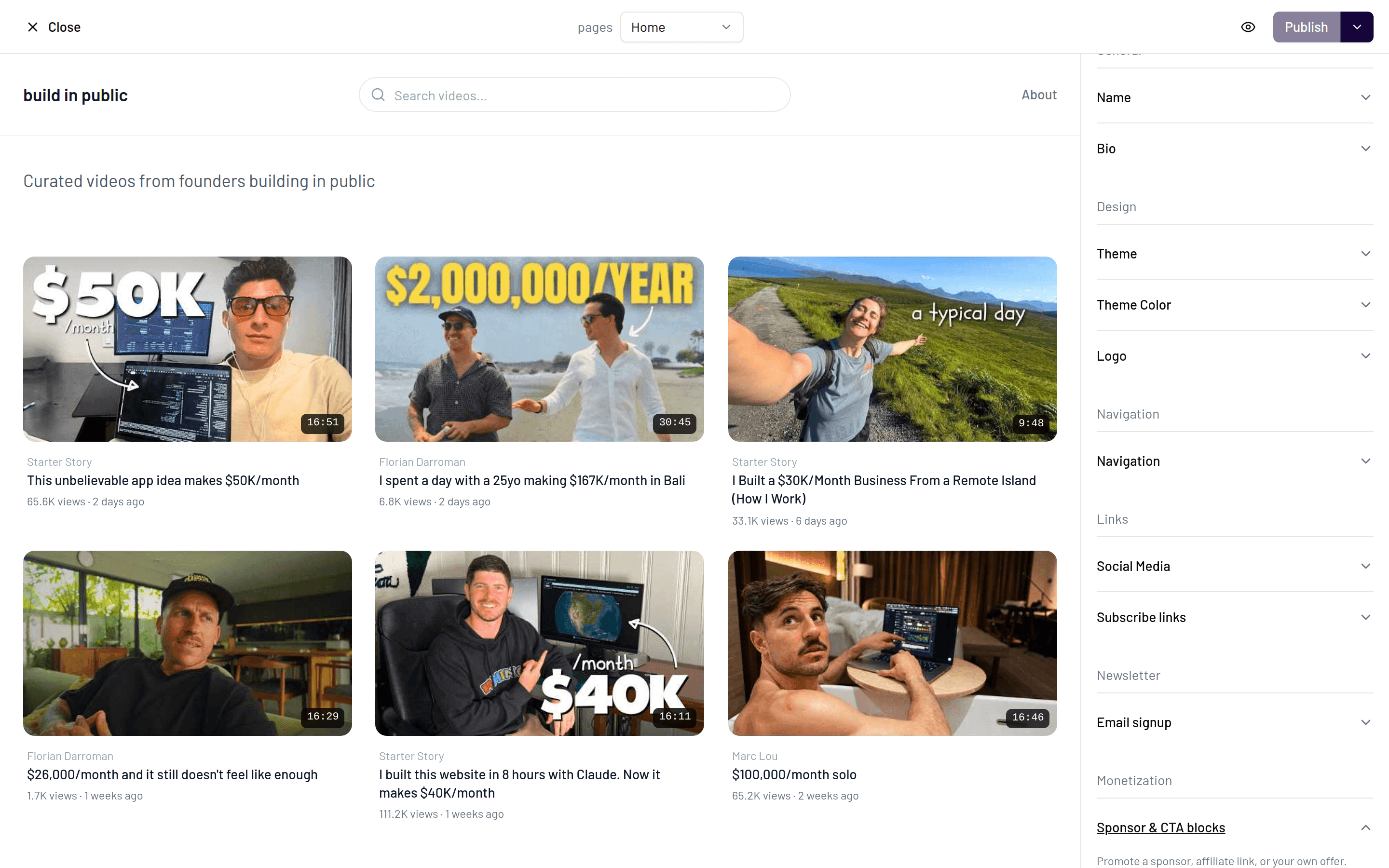
Create a new block and choose its kind: Site block or Video block. Give it an internal name — only you see it, so something like "NordVPN Q3 deal" works well.
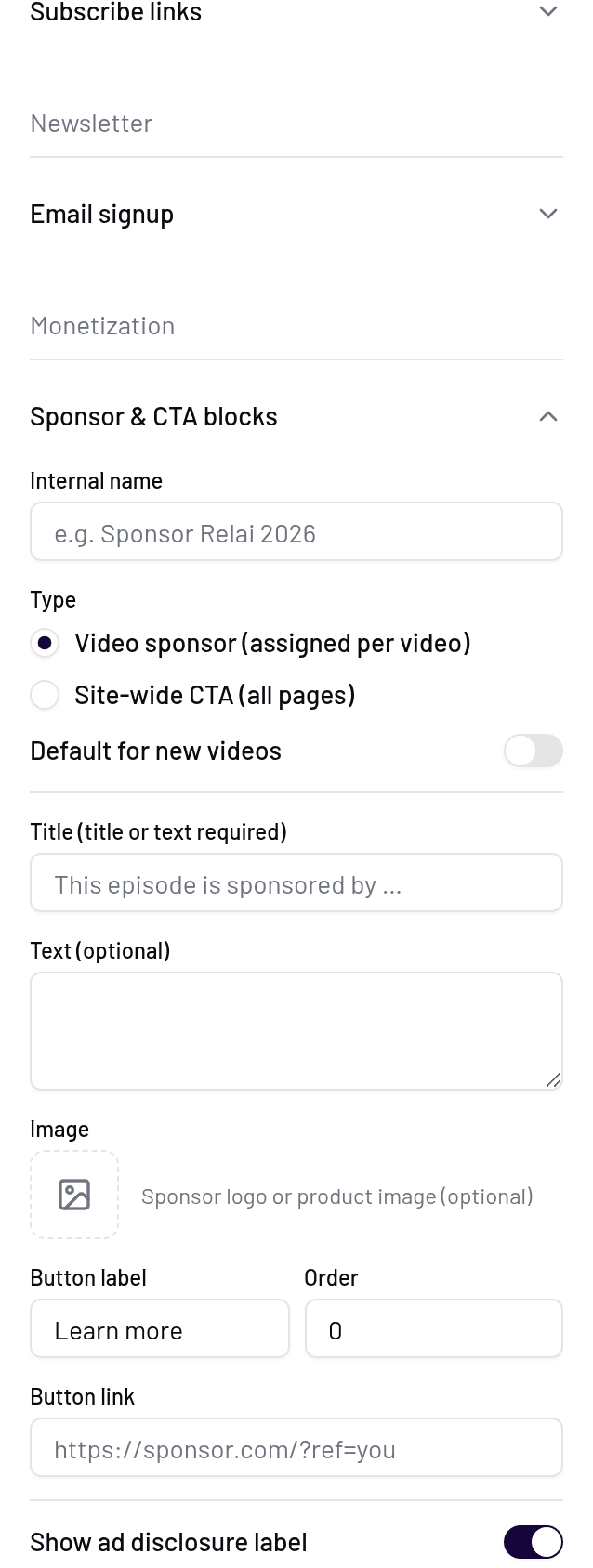
Fill in the content: an optional image, a title and/or text, and a button label with a button URL.
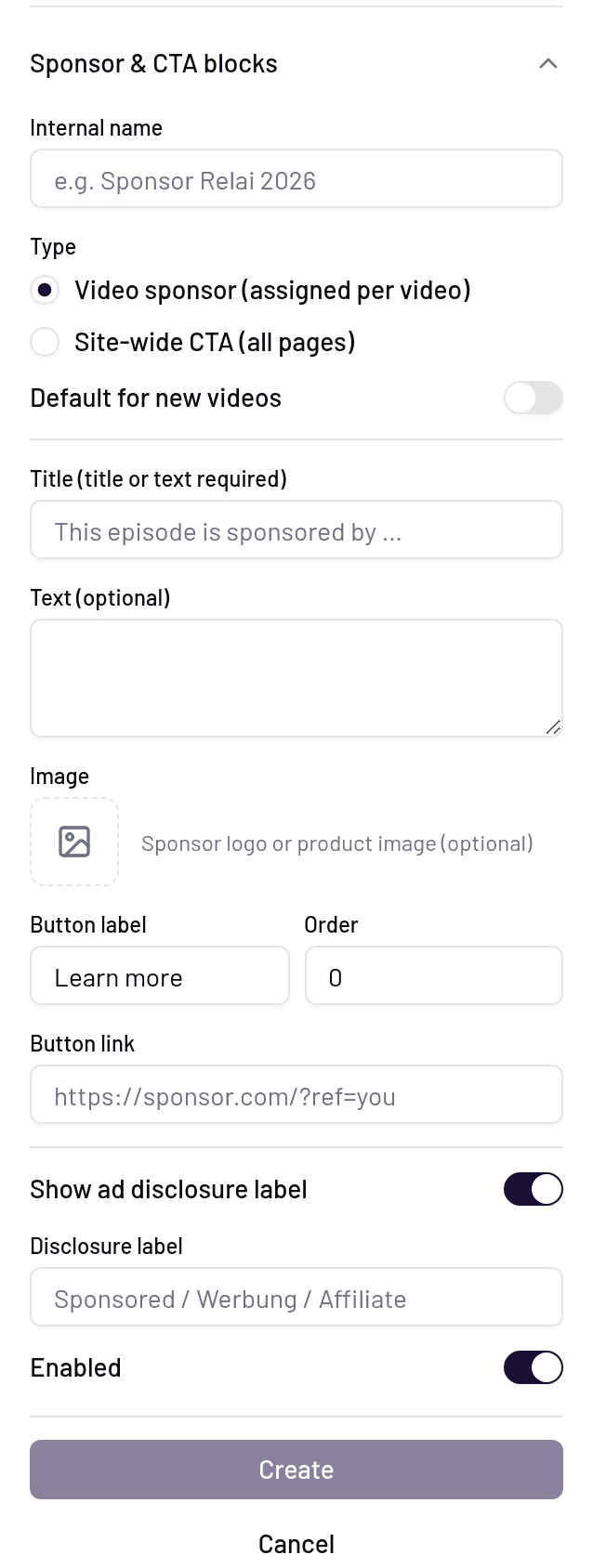
For Site blocks, pick the homepage placement (hero, in-grid, or footer) and decide whether the block should also appear on all video pages.
Optionally enable the ad-disclosure toggle and set its label. Save the block.
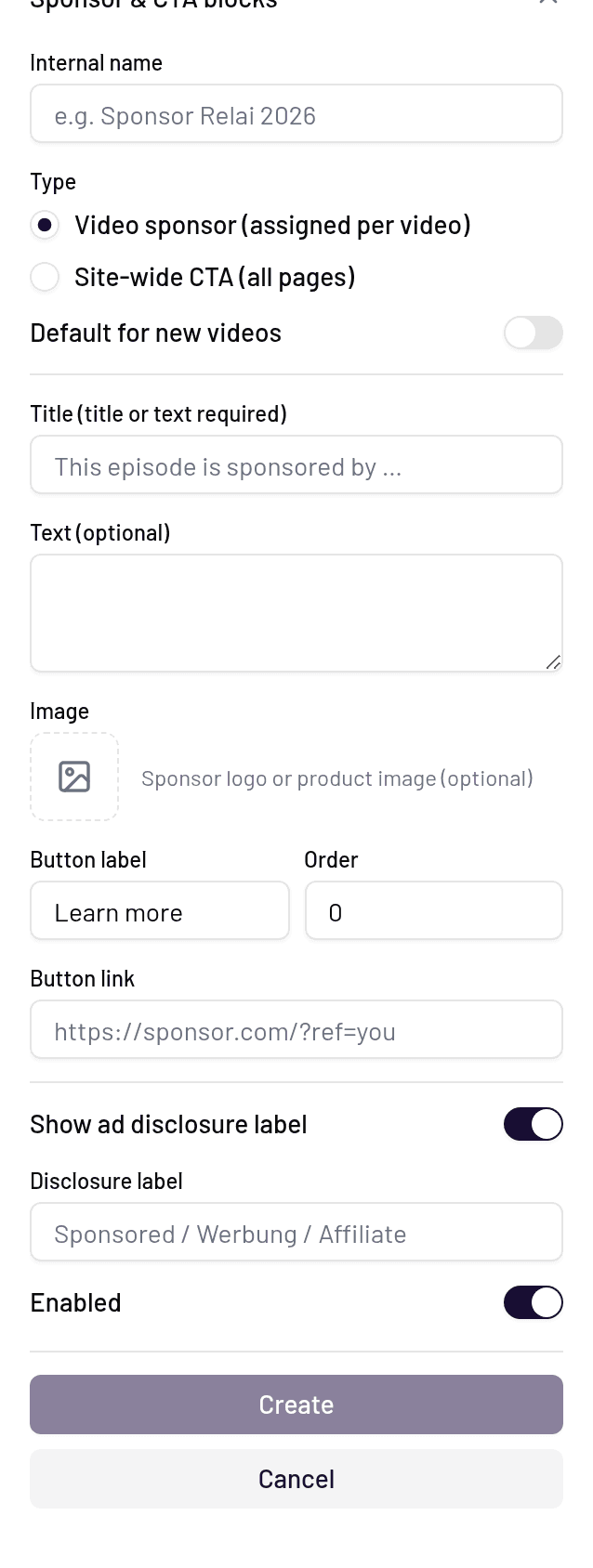
Assign video blocks to videos
Video blocks only show up on videos you assign them to. Open a video in the Content section of the editor and pick the sponsor block(s) that apply. This way a sponsor banner appears on exactly the videos covered by your deal — and nowhere else.
Sponsor workflow: default block + curated mode
One video block can be marked as default for new videos. Every newly synced video gets it assigned automatically. This pairs well with curated mode: new videos arrive with your current sponsor block already attached, you review them, adjust the block assignment if a video isn't part of the deal, and then publish the video to your site. When a sponsorship ends, remove the default and assign the next sponsor's block instead.
Ad disclosure
Each block has an optional disclosure toggle with an editable label — for example "Sponsored", "Werbung", or "Affiliate". Swiss and EU ad-transparency rules generally require paid promotions to be clearly labeled, so we recommend enabling the toggle on any block that involves a paid deal or affiliate links.
Not legal advice
Disclosure requirements vary by country and situation. The toggle helps you comply, but check the rules that apply to you.
Ordering multiple blocks
If several blocks share a page, they're shown in their sort order. Reorder blocks to control which one appears first — for example, put the active sponsor above your evergreen merch CTA.