
Quickstart: from channel to live site
Create a yabby account, connect your YouTube channel, and get a live website in a few minutes.
This guide takes you from nothing to a live website built from your YouTube channel.
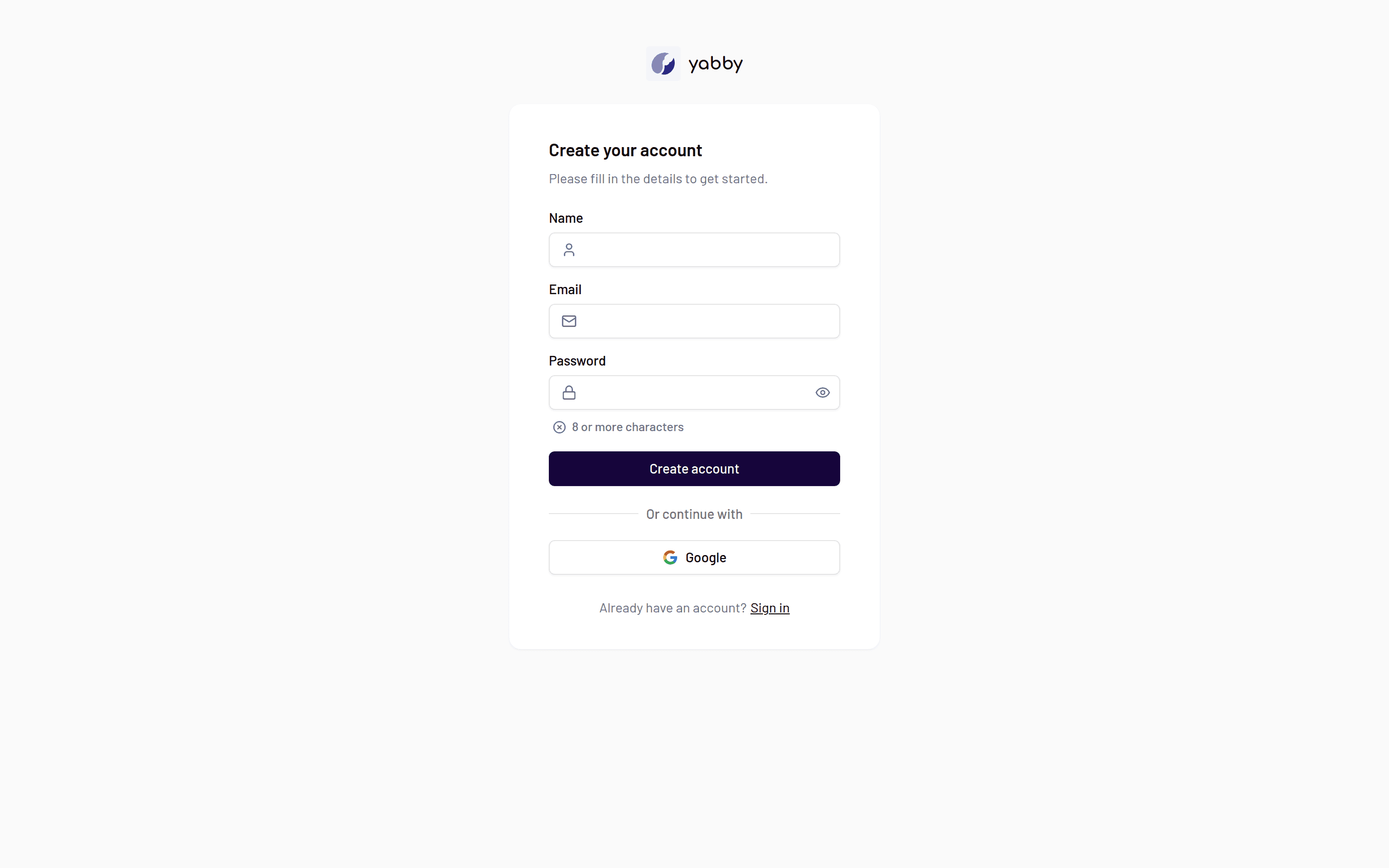
Sign up
Create your account at yabby.page with email and password, or continue with Google. You can add two-factor authentication later in your account settings.
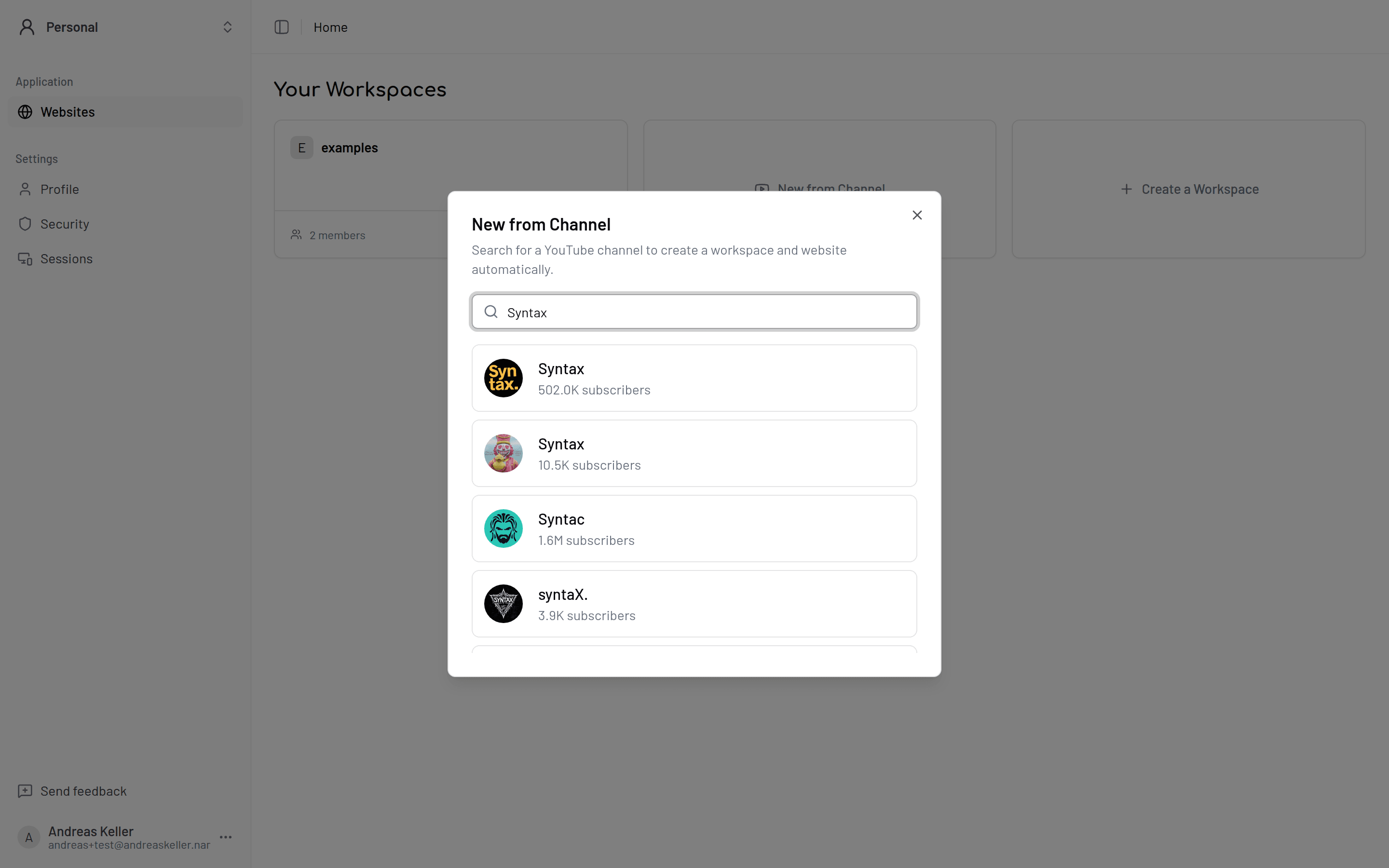
Find your YouTube channel
Right after sign-up, onboarding asks you to search for your YouTube channel. Type your channel name or handle, pick the right result, and click Set up my website. yabby creates your first website from that channel.
Let your videos import
yabby syncs your videos from YouTube automatically — titles, descriptions, thumbnails, publish dates, view counts, and durations. This runs in the background; you can start customizing right away.
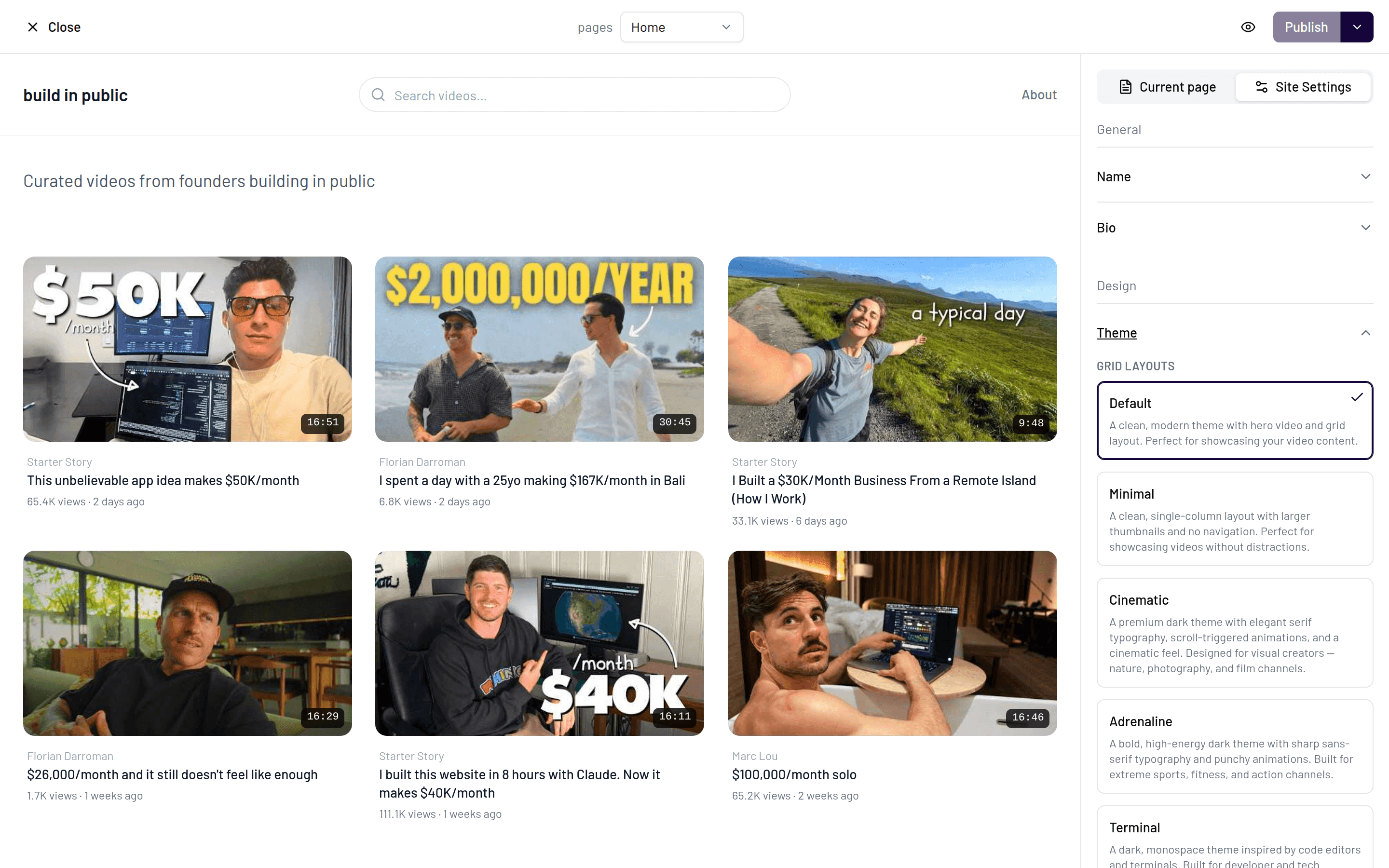
Pick a theme and colors
In the website editor, open Design in the sidebar. Choose one of the nine themes, set a theme color that matches your brand, and upload a logo if you have one.
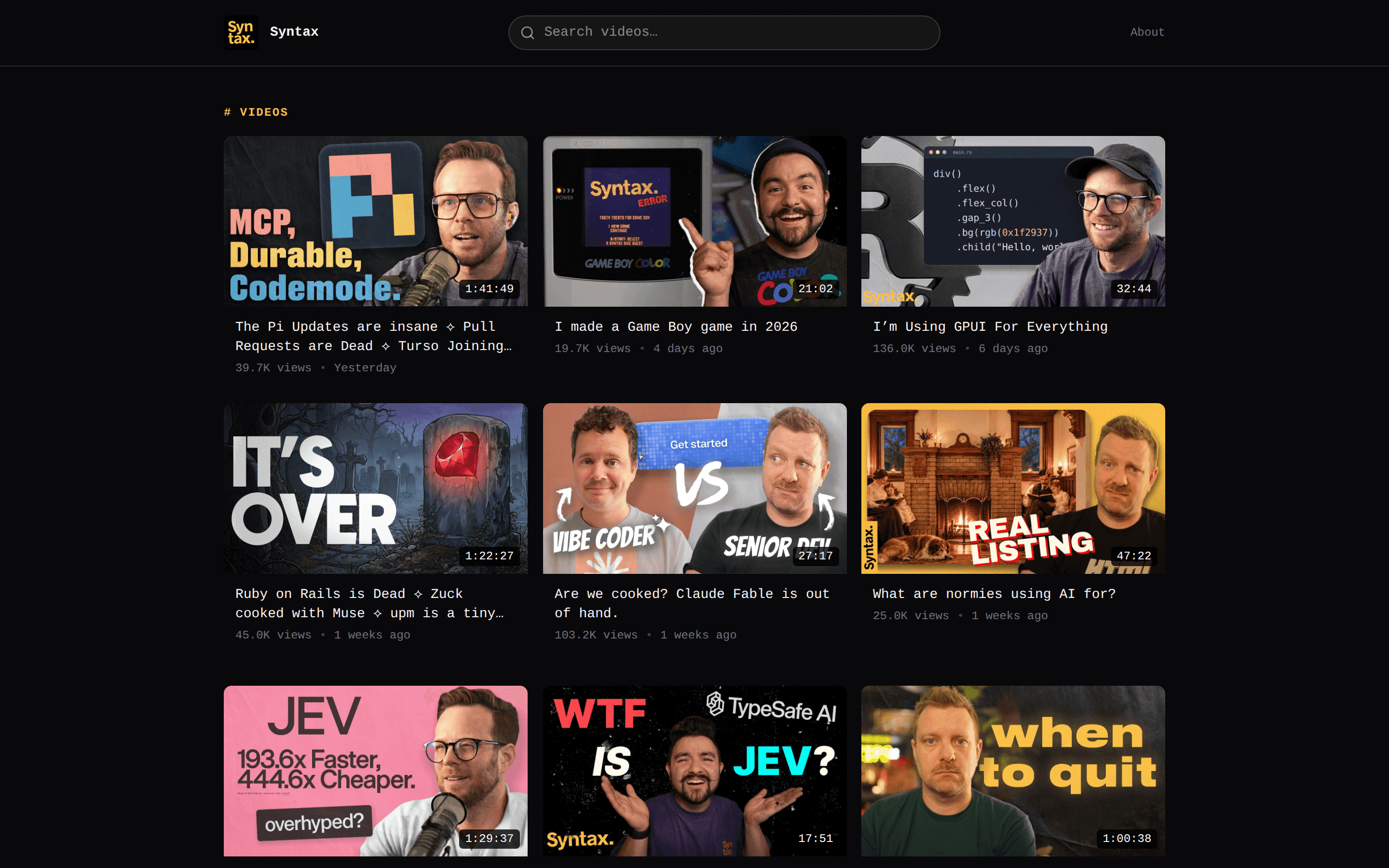
Preview your site
Click Preview website to see exactly what visitors will get: your homepage with bio and video grid, individual video pages, and playlists.
Publish and share
Set your site's status to published, then share your URL: https://<your-slug>.yabby.page. You can change the slug anytime under Settings → Subdomain, or connect your own domain.
Publishing requires a paid plan
The Free plan lets you build and preview only. To publish your site, upgrade to Pro or higher. See Plans.
From here, your site keeps itself up to date: new videos you upload to YouTube appear on the next sync.
Related
What is yabby?
yabby turns your YouTube channel into a standalone website with your own domain, branding, newsletter signups, and sponsor blocks.
Curate a multi-channel site
Build a TED-style video hub that collects the best and latest videos from multiple YouTube channels — no channel of your own required.