
Adding YouTube channels
Add one or more YouTube channels to your yabby website, choose how their videos are combined, and reorder or remove channels.
Every yabby website is built from at least one YouTube channel — the one you picked during onboarding. You can add more channels, reorder them, and remove them from the website editor's Channels tab.
Add a channel
In the website editor, open the Channels tab and find the Add YouTube Channel card. Search for the channel by name or handle, pick the right result, and add it.
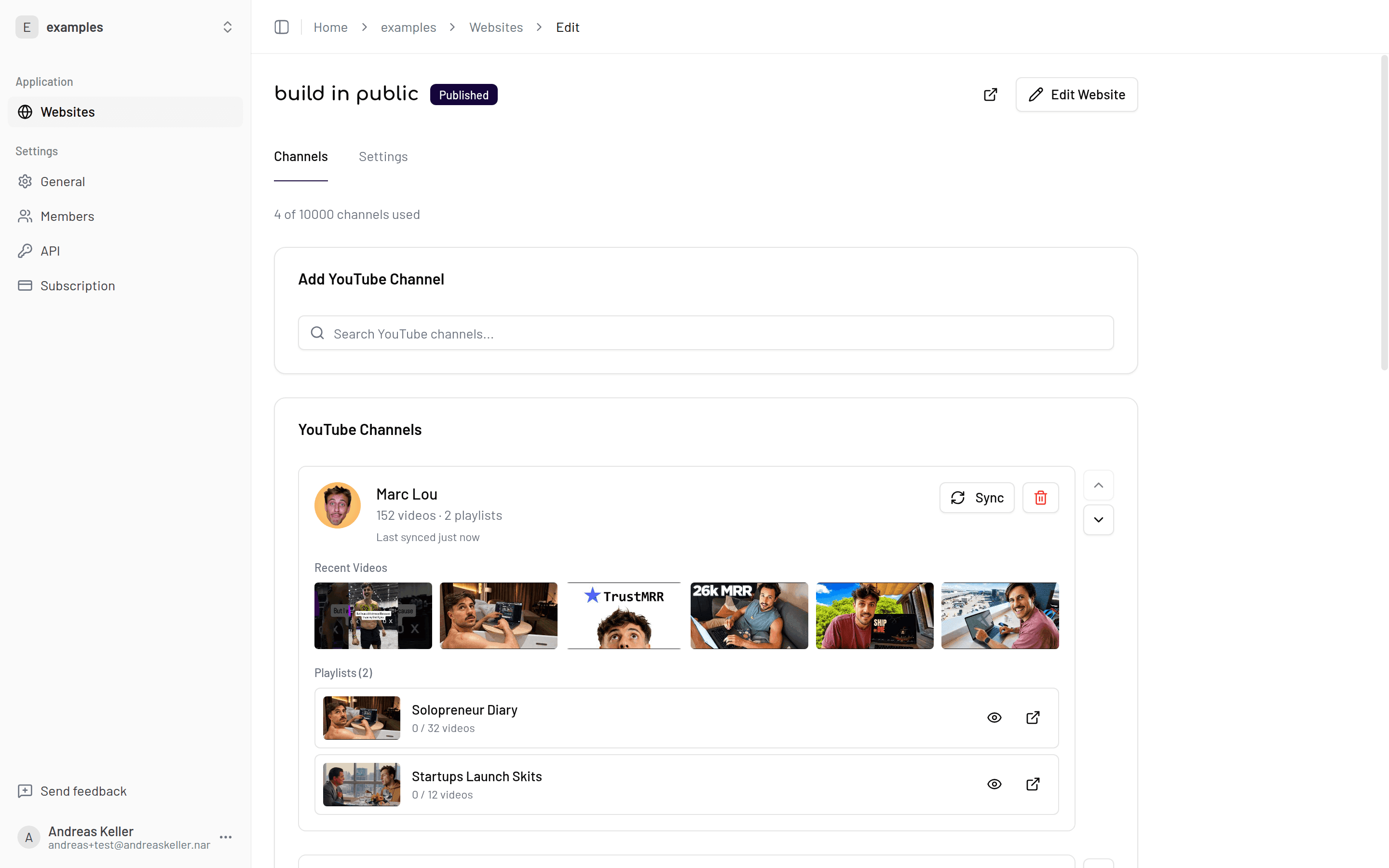
Once added, the channel appears in the YouTube Channels list, and the first sync starts. yabby imports the channel's videos through the YouTube Data API — titles, descriptions, thumbnails, publish dates, view counts, and durations — along with its playlists. How many videos are imported per channel depends on your plan: 50 on Free, 500 on Pro, 1000 on Premium, unlimited on Max.
More channels need Premium or Max
Free and Pro websites support one channel. Premium allows 3 channels per website; Max allows unlimited channels. See Plans.
Multiple channels: mix or group
If your website has more than one channel, the channel mix mode (in the sidebar under Content → Customize) decides how their videos appear on your homepage.
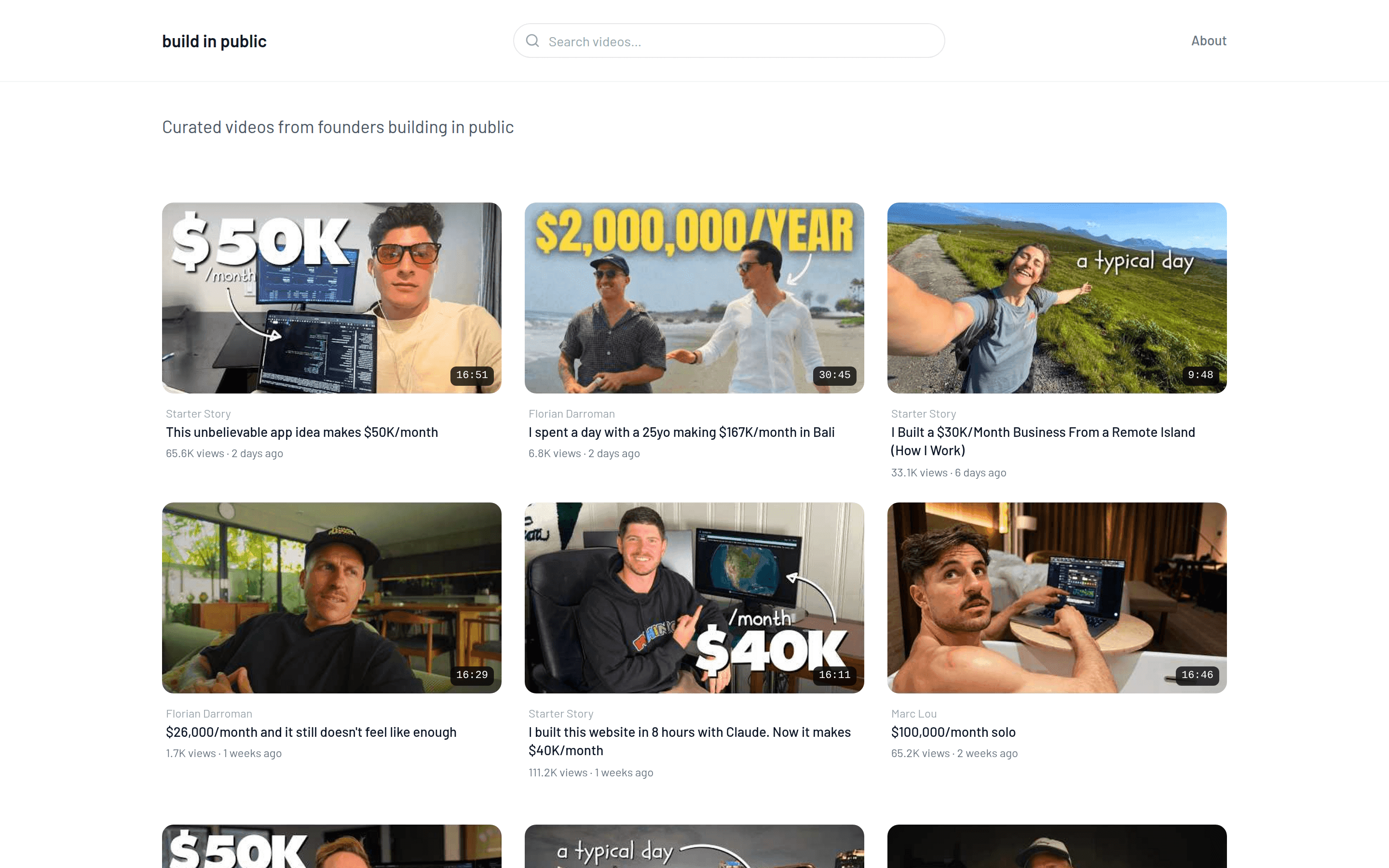
Mix merges all channels into one combined grid, sorted by your chosen sort order. Visitors see a single stream of videos — good when your channels cover the same topic or audience.
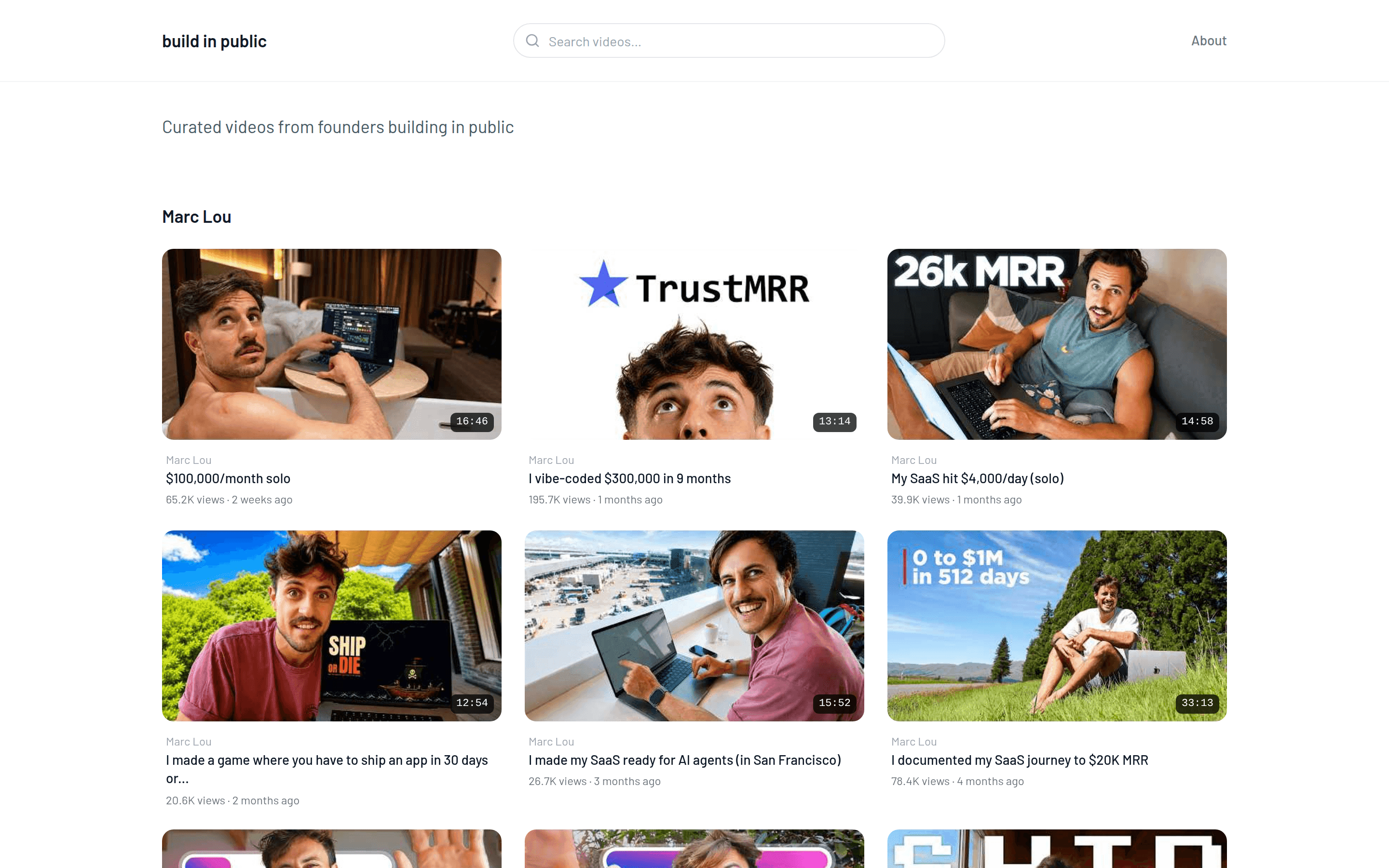
Group keeps each channel in its own section, one after another. Visitors can tell at a glance which channel a video belongs to — good when your channels have distinct identities.
Multi-channel sites aren't just for creators with several channels of their own: mix mode is also the foundation for curated topic hubs that collect the latest videos from channels across a niche — see Curate a multi-channel site and the live example buildinpublic.video.
Reorder channels
In group mode, channels appear on your site in the order of the YouTube Channels list. Use Move up and Move down on a channel to change that order.
Remove a channel
Use Remove on a channel to take it off the website. This removes the channel's videos and playlists from your site as well — they aren't touched on YouTube, but they no longer appear on your yabby site. You can re-add the channel later; its videos will import again on the first sync.
Keeping channels up to date
Each channel has its own Sync Now button for a manual sync. On paid plans, syncs also run automatically — daily on Pro, hourly on Premium, every 15 minutes on Max. See Sync.